How to Buy Data Tokens After HughesNet Login
Learn how to buy HughesNet data tokens after login, choose the right token size, restore Priority Data instantly, and fix token purchase issues if the button is missing.
Running out of high-speed data in the middle of the month can make your HughesNet connection feel painfully slow.
The good news is that HughesNet lets you restore your full Priority Data almost instantly by buying Data Tokens from inside your account. HughesNet officially confirms that tokens can be purchased directly after login from the Usage section of the dashboard.
Once you know where the purchase button lives, the whole process becomes quick and easy.
Login to MyHughesNet First
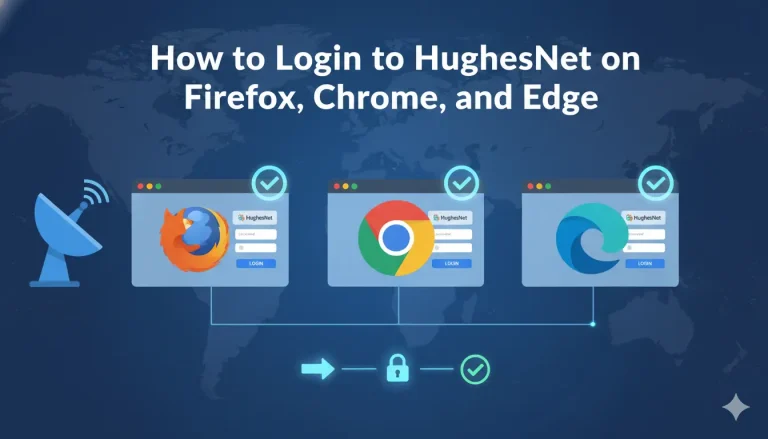
Start by opening the official MyHughesNet login page in your browser.
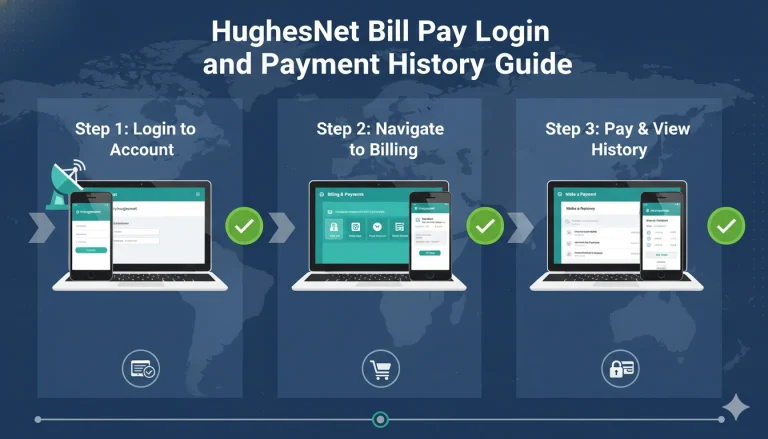
Sign in with your username and password just like you normally do for billing or usage checks.
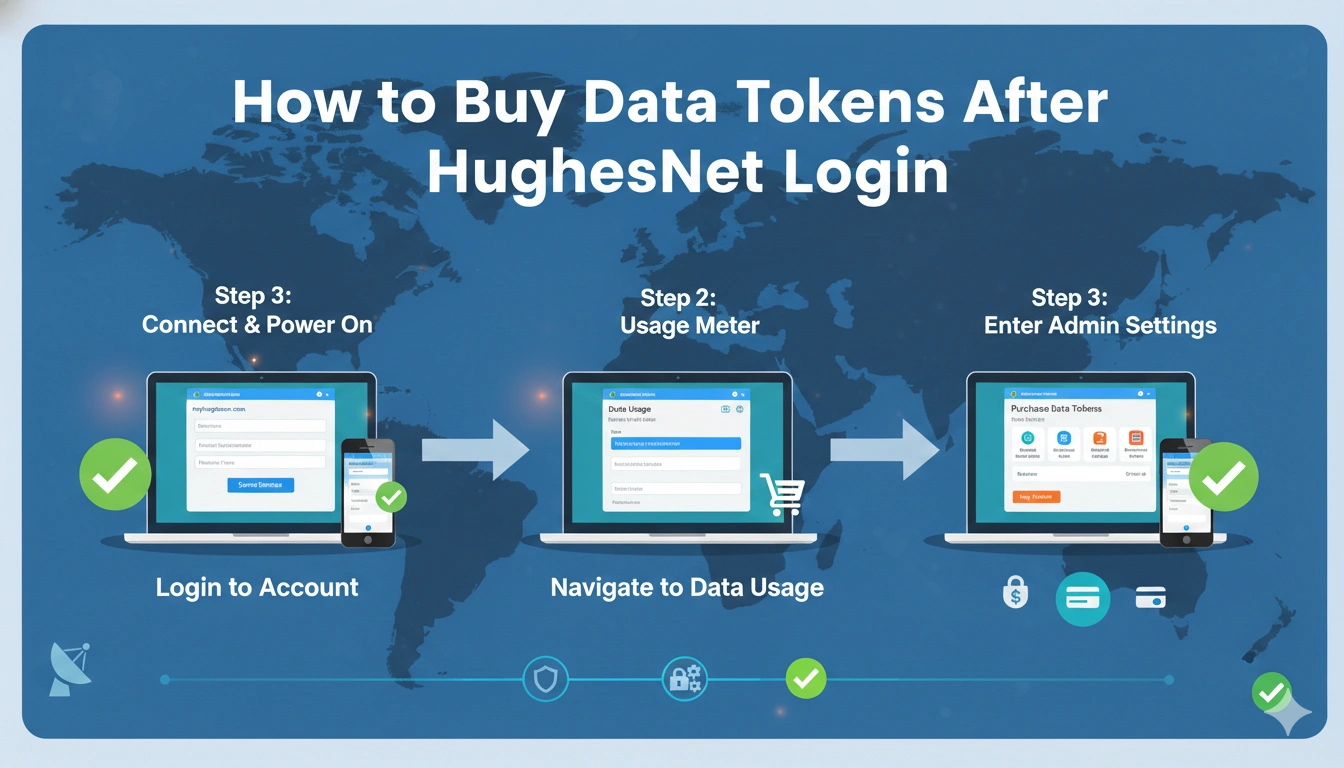
After login, go to the Usage tab at the top of the dashboard. This is the same place where your remaining Priority Data and monthly reset date are shown. HughesNet officially places the token purchase option inside this section.
This is the main HughesNet data token purchase area.
Open the Data Token Purchase Section
Inside the Usage tab, look for Data Token Purchase or Priority Data Token Purchase.
Once you click it, HughesNet opens a purchase window that shows the available token sizes you can buy. The official flow is:
Usage → Priority Data Token Purchase → Select Token → Purchase.
This is where you choose how much extra data you want added to your account.
The page is usually very simple and loads within a few seconds.
Choose the Right Token Size
HughesNet normally offers multiple token sizes depending on your needs.
If you only need enough data for emails and basic browsing, a smaller token works fine.
But if you are dealing with streaming, large updates, Zoom meetings, or multiple family devices, it’s usually smarter to choose a larger token so you don’t run out again too quickly.
The selected token amount is clearly shown before payment confirmation, so you can review it before finalizing the purchase.
That makes it easy to avoid buying the wrong size.
Confirm Purchase and Restore Data
After selecting the token size, click Purchase.
The token is usually added to your Token Data balance almost immediately after payment confirmation. HughesNet confirms that purchased tokens restore your Priority Data right away.
If your monthly plan data is already exhausted, the modem will automatically begin using the token data.
This means your speeds normally return to full performance within moments.
That’s why tokens are the fastest fix for end-of-cycle slowdowns.
Buy Tokens From Mobile App Too
If the website feels slow, the myHughesNet mobile app makes the same process even easier.
After login, open either the Overview screen or the Usage tab and tap Buy Tokens. HughesNet officially supports both app paths for token purchases.
A lot of users prefer the app because it is faster than opening the full dashboard on desktop.
It’s also very convenient when your laptop is not nearby.
Why Data Token Purchase Button Is Missing
Sometimes users log in and don’t see the Usage tab or the token button.
This usually happens because of browser extensions, ad blockers, outdated cache, or a temporary dashboard glitch.
A common fix is switching browsers, using incognito mode, or opening the mobile app instead. HughesNet community users have confirmed this solves the missing button issue in many cases.
So if the option is not visible, it usually isn’t an account problem.
When Should You Buy Data Tokens?
The best time to buy a token is when your Priority Data balance is close to zero and you still need normal speeds before the monthly reset.
This is especially useful for:
video calls, work uploads, school classes, streaming, and software updates.
A small token at the right time can keep your whole month running smoothly.
Conclusion
Buying HughesNet Data Tokens after login is one of the easiest ways to restore full internet speed when your monthly Priority Data runs low.
Simply log into MyHughesNet, open Usage, select Priority Data Token Purchase, choose your token size, and confirm payment.
Within moments, the extra data becomes available and your connection returns to normal speed.
If the website option is missing, the mobile app provides the same purchase tools with an even faster experience.
FAQs
Where do I buy HughesNet data tokens after login?
Go to MyHughesNet → Usage → Priority Data Token Purchase.
How fast do tokens activate?
Usually almost instantly after purchase confirmation.
Can I buy tokens from my phone?
Yes, the myHughesNet mobile app supports token purchases.
Why is token purchase button missing?
Usually browser cache, extensions, or dashboard glitches hide it.
Do tokens restore full speed?
Yes, they restore Priority Data, which brings normal speeds back immediately.