HughesNet Usage Meter Login and Data Check Guide
Learn how to use HughesNet Usage Meter login to check remaining data, view usage history, monitor device usage, and buy data tokens before speeds slow down.
Keeping an eye on your monthly data is one of the most important parts of managing a HughesNet connection.
Because HughesNet plans are closely tied to Priority Data, many users want a fast way to log in and check how much data is left before speeds begin to slow down. The good news is that HughesNet makes this easy through both the MyHughesNet dashboard and the mobile app, where the Usage Meter section shows your current balance and history. HughesNet officially confirms that you can check this from Usage → Usage Details after login.
Once you know where the usage tools are, it becomes much easier to avoid surprise slowdowns.
Where to Open HughesNet Usage Meter
The fastest way is through the official MyHughesNet login portal.
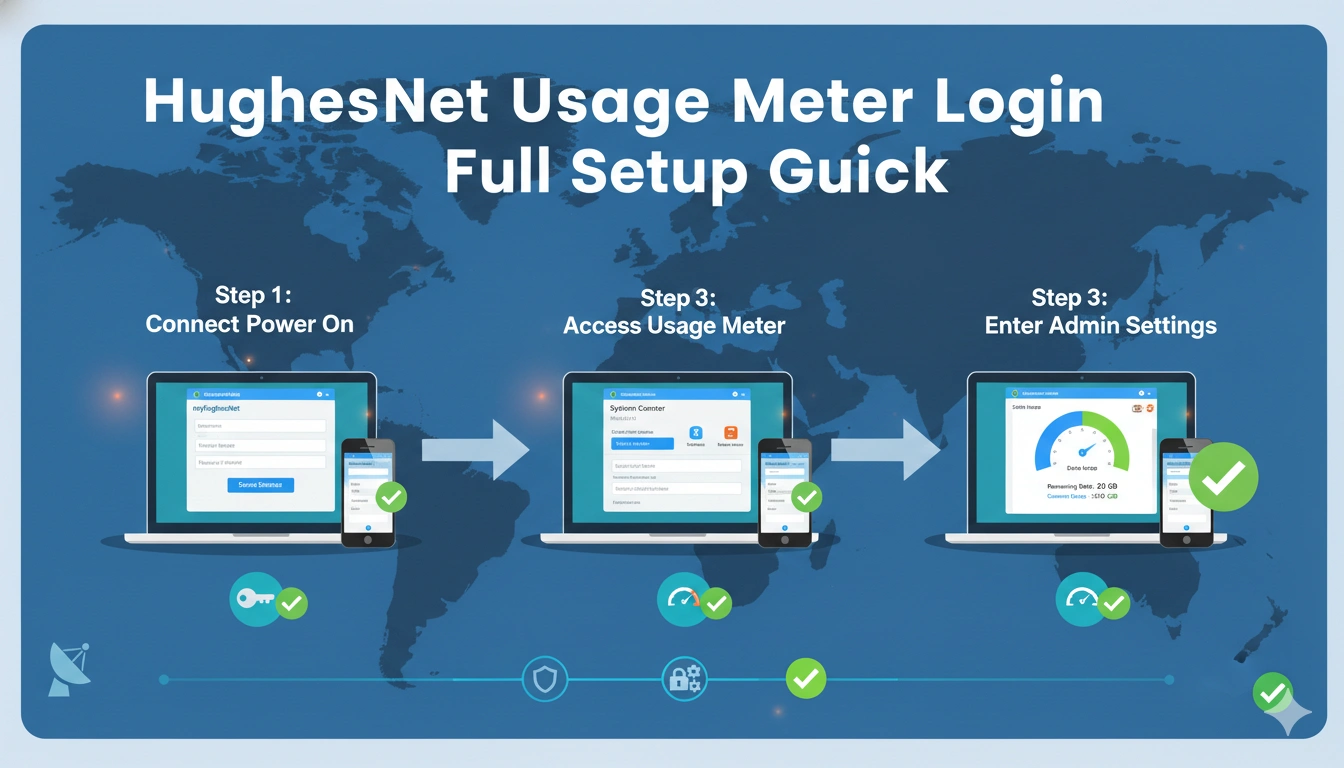
After signing in with your username and password, click the Usage tab at the top of the dashboard. Inside this section, HughesNet shows:
your remaining Priority Data, used data, refill date, and Usage History over time.
This is the main HughesNet Usage Meter login area most customers use.
It gives you a clear picture of how much data is still available before the next reset cycle.
Check Data Usage From Mobile App
If you prefer using your phone, the myHughesNet mobile app offers the same usage meter tools.
After login, tap the Usage button from the bottom menu. From there, you can open:
Usage Details, Usage History, and even Data Token Purchase if you are running low. HughesNet’s mobile app officially supports all of these usage tools.
This is especially useful when you want to quickly check your data while away from home.
A lot of users actually prefer the mobile usage meter because it’s faster than opening the full website.
How to Read the HughesNet Data Meter
Inside the usage section, you’ll mainly see two things:
your Priority Data balance and the date it resets.
The remaining balance tells you how much high-speed data is still available in your monthly cycle.
Once it reaches zero, HughesNet keeps the connection active, but speeds may reduce until the next cycle or until you buy Data Tokens. HughesNet explains that the data cycle often resets based on your original activation date.
So if your internet suddenly feels slower near the end of the month, the usage meter is usually the first place to check.
Check Daily Device Usage
One of the most useful advanced features is device-level data tracking.
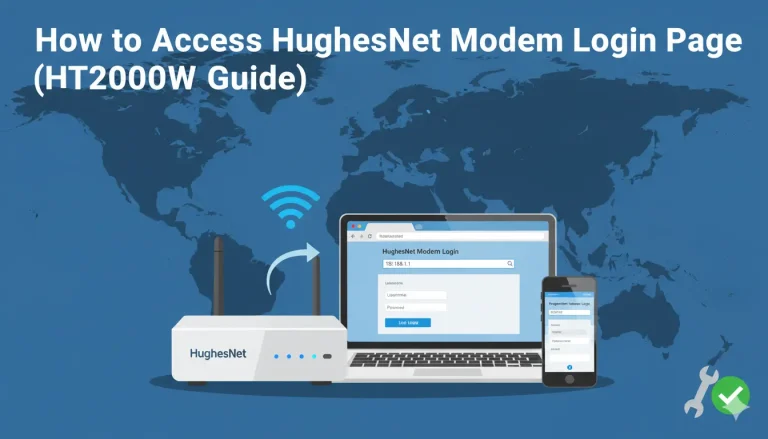
If you use the HT2000W modem, HughesNet allows you to see daily and 14-day usage by device from the Wi-Fi Management → Connected Devices section. This shows which phone, TV, laptop, or streaming box is using the most data.
This is extremely helpful when one hidden device is quietly draining your data.
A lot of unexpected data loss turns out to be:
smart TVs, game updates, cloud backups, or security cameras.
Buy More Data From Usage Meter
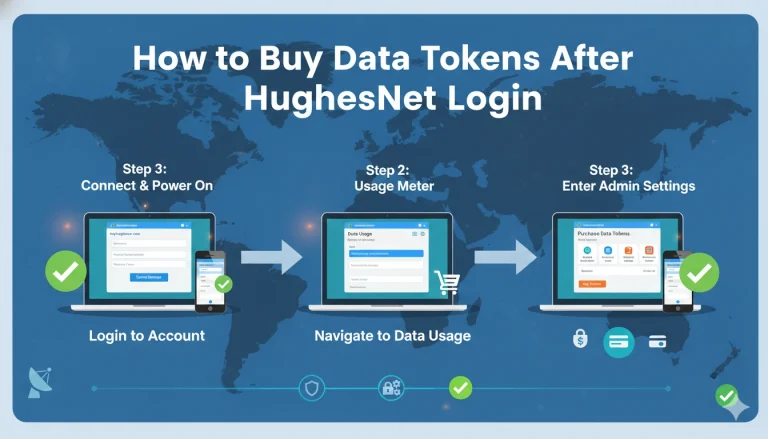
If your meter shows that you are close to zero, you can buy extra data directly from the same screen.
HughesNet lets you purchase Data Tokens from both:
- the website dashboard
- the mobile app usage screen
Once purchased, your high-speed data is restored almost immediately.
This is one of the easiest ways to keep normal speeds without waiting for the monthly reset.
Why Usage Meter Is Important
The usage meter is more than just a number.
It helps you understand:
how fast your household consumes data, which devices use the most bandwidth, and whether background apps are causing hidden overuse.
For families with streaming devices, gaming consoles, or remote work setups, checking this regularly can prevent sudden slow speeds.
Even a quick daily look can help you catch heavy data usage early.
Conclusion
The HughesNet Usage Meter login and data check process is simple once you know where to look.
Just sign into MyHughesNet or the mobile app, open the Usage tab, and you’ll instantly see your remaining Priority Data, reset date, usage history, and device-level tracking options.
If data is running low, the same section also lets you buy Data Tokens to restore speed.
Checking the usage meter regularly is one of the best ways to keep your HughesNet connection smooth and avoid surprise slowdowns.
FAQs
Where is HughesNet Usage Meter after login?
Open MyHughesNet → Usage → Usage Details.
Can I check data usage on phone?
Yes, the myHughesNet mobile app shows full usage details.
Can I see which device used the most data?
Yes, HT2000W supports device-level usage tracking.
What happens when Priority Data reaches zero?
Your connection stays active but may slow down until reset.
Can I buy extra data from Usage Meter?
Yes, you can buy Data Tokens directly from the usage screen.
You have not enough Humanizer words left. Upgrade your Surfer plan.