HughesNet HT2000W Admin Login Full Setup Guide
Learn how to access the HughesNet HT2000W admin login, open WiFi settings, change the admin password, manage 2.4GHz/5GHz bands, and fix login issues fast.
If you want full control over your HughesNet modem, the HT2000W admin login is where everything starts.
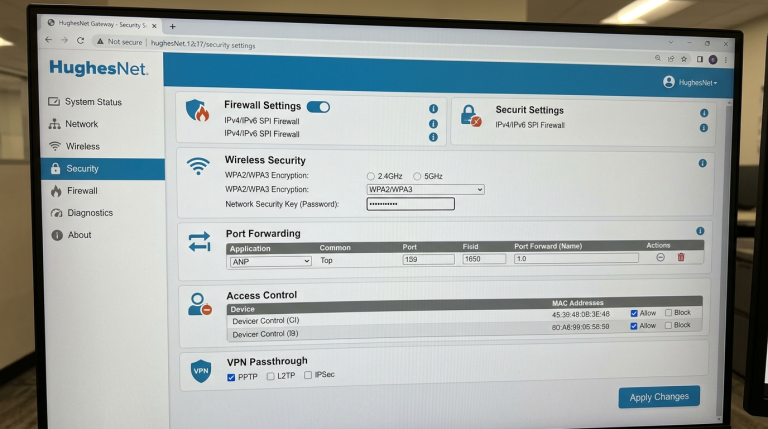
This is the control area that lets you manage your WiFi name, password, guest network, connected devices, parental controls, and even advanced options like port forwarding. HughesNet officially provides this through the System Control Center, which opens locally from your modem while your device is connected to the same network.
The best part is that you don’t need to log into your billing account for this. The modem has its own built-in admin panel.
Once you learn the setup flow once, future changes become very easy.
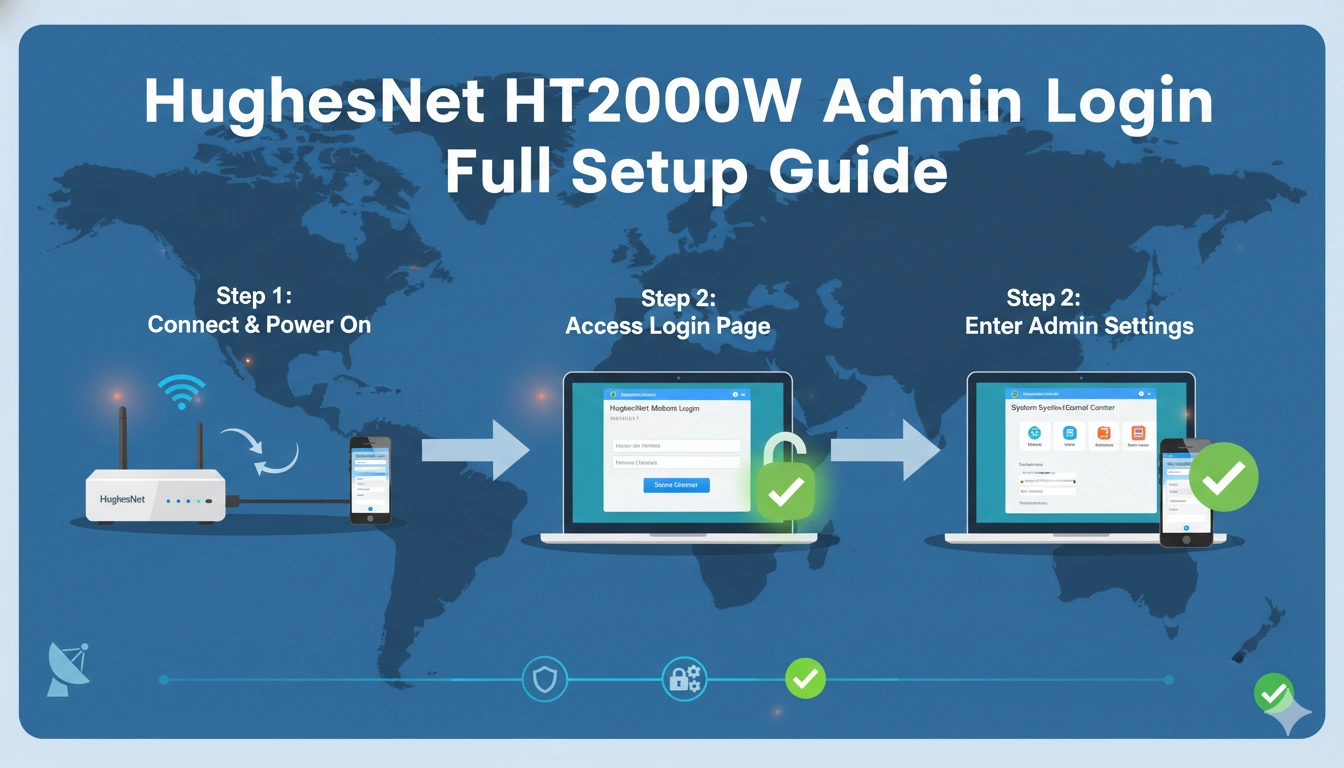
Connect Your Device to the HT2000W First
Before opening the admin page, make sure your laptop, desktop, or phone is connected directly to the HT2000W WiFi or LAN cable.
This part matters because the admin dashboard works only inside the local modem network.
If your device is using another router, office WiFi, VPN, or mobile hotspot, the login page may never open.
A lot of people think the modem page is broken, but in reality the device is simply on the wrong network.
So always start by checking the WiFi name printed on the back sticker of the modem and connect to that first.
Open the HT2000W Admin Login Page
Once connected, open Chrome, Edge, or Firefox and type:
192.168.0.1
You can also use:
systemcontrolcenter.com
Both addresses open the same HughesNet System Control Center. From there, click WiFi Settings to move into the admin setup area. HughesNet’s official guide confirms this exact path.
On some HT2000W setups, the WiFi settings login page may automatically switch to 192.168.42.1, which is normal because that section loads the router-side wireless configuration page.
So don’t worry if the IP changes after clicking WiFi settings.
Default Admin Login Password
When the login screen opens, the default administrative password is usually admin unless it has been changed before. HughesNet officially lists admin as the default value.
After entering it, click login and the full settings dashboard will open.
This is the main place where you control:
your WiFi password, SSID, guest bands, device visibility, and admin security.
If admin does not work, it usually means someone changed it earlier during installation or a previous WiFi update.
Full HT2000W Setup After Login
Once inside the admin area, the HT2000W gives you complete control over the network.
The most important first-time setup tasks are:
changing the WiFi name, updating the WiFi password, enabling the 5GHz network, checking guest WiFi, and changing the admin password itself.
The modem separates settings into:
2.4GHz, 2.4GHz Guest, 5GHz, and 5GHz Guest tabs. HughesNet’s own setup guide recommends reviewing all of these during initial configuration.
This helps make sure every room and device in the house gets the best connection.
Change the Admin Password Immediately
One of the smartest things to do after first login is changing the default admin password.
Leaving it as admin means anyone connected to your WiFi could potentially open the modem settings page.
Inside the Administration > Password Settings section, you can replace the default password with a private one. HughesNet’s HT2000W guide specifically recommends changing it immediately after installation.
Choose something easy for you to remember but difficult for others to guess.
This protects:
WiFi settings, guest access, device controls, and parental restrictions.
Common HT2000W Login Problems
If the admin page does not open or the login button does nothing, the issue is usually simple.
Most cases happen because:
the device is on the wrong WiFi, the browser cache is stuck, or the admin password was changed before.
There are also cases where the page opens but clicking Login seems unresponsive. HughesNet community reports show that reconnecting directly to the modem and refreshing the wireless page usually fixes it.
If it still fails, restarting the modem once often clears the session.
Best Settings to Configure First
For the best HT2000W setup experience, focus on these first:
change WiFi password, rename the SSID, enable both 2.4GHz and 5GHz, set guest WiFi if needed, and secure the admin password.
These small changes give you:
better speed distribution, stronger security, easier device management, and fewer random connection problems.
A clean first-time setup saves a lot of troubleshooting later.
Conclusion
The HughesNet HT2000W admin login is the main control center for managing your full home network.
By opening 192.168.0.1, clicking WiFi Settings, and logging in with the default admin password, you can access everything from WiFi names to advanced guest and security tools.
The most important first steps are changing the default admin password, reviewing both wireless bands, and saving a secure WiFi password.
Once configured properly, the HT2000W becomes much easier to manage and far more secure.
FAQs
What is the HT2000W admin login IP?
Use 192.168.0.1 or systemcontrolcenter.com.
What is the default HT2000W admin password?
The default password is admin.
Why does the page switch to 192.168.42.1?
That is normal when opening the WiFi settings section of the HT2000W.
Should I change the admin password after first login?
Yes, HughesNet recommends changing it immediately for better security.
Can I manage 2.4GHz and 5GHz separately?
Yes, the HT2000W provides separate tabs for both bands and their guest networks.