How to Fix HughesNet Sign In Error on Shared Devices
Learn how to fix HughesNet sign in errors on shared devices, including cookie conflicts, saved account mix-ups, browser profile issues, and private mode solutions.
If multiple people in the same house use one laptop, school PC, office desktop, or family tablet, HughesNet sign in errors on shared devices become much more common than most users expect.
The issue usually happens because the browser keeps old session cookies, saved usernames, or cached login tokens from the previous person who signed in. HughesNet sessions rely heavily on cookies, and once those cookies expire or clash with another user’s session, sign-in errors start appearing.
The good thing is that this is usually a browser session problem, not an account problem.
Once you clean the shared device properly, the login works normally again.
Why Shared Devices Cause HughesNet Login Errors
Shared devices store old browsing data from every person who logs in.
That means one family member may sign in with their account, close the tab, and the browser still quietly keeps:
old cookies, saved usernames, autofill passwords, and session tokens.
When the next person opens the HughesNet login page, the browser may try to reuse the old session.
This creates problems like:
wrong account loading, endless sign-in loops, or invalid session errors.
HughesNet community discussions confirm that session cookies can stay active until browser close or session timeout, which makes shared devices more likely to show conflicts.
Use Private or Incognito Mode First
The fastest fix is opening the HughesNet login page in Incognito / Private Browsing mode.
This creates a clean temporary session that ignores old cookies and saved usernames from other users.
Because private mode closes the session fully when the window is closed, it works especially well for:
family laptops, office systems, hostel computers, and school shared devices.
This is usually the easiest way to avoid account crossover.
Clear Old Browser Cookies and Cache
If private mode is not enough, clear the browser’s cookies and cache.
Old cookies are the biggest reason HughesNet sign-in sessions conflict on shared systems. HughesNet’s own community explains that expired LiSESSIONID and session cookies often cause repeated login or logout behavior.
After clearing:
- cookies
- cached files
- saved site permissions
- form autofill
close the browser completely and reopen it.
This gives the next login a clean start.
Remove Saved Autofill Username
A very common issue on shared devices is saved autofill credentials.
The browser may automatically insert the previous user’s:
username, SAN-linked email, or old password.
Then the next person unknowingly tries signing in with the wrong details.
This leads to instant invalid username/password errors even though the account is fine.
Before logging in, always double-check the username field and remove any old autofill suggestion.
That small step solves many shared-device login problems.
Create Separate Browser Profiles
If multiple family members regularly use the same laptop, the best long-term fix is creating separate browser profiles.
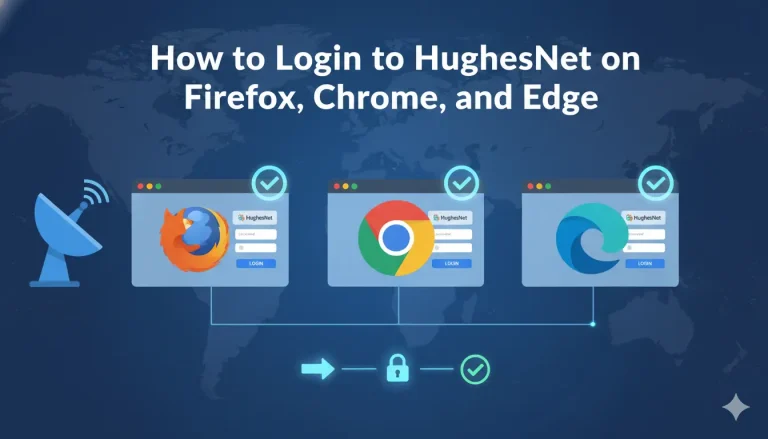
Chrome, Edge, and Firefox all support multiple user profiles.
This means each person gets:
their own cookies, saved passwords, browsing history, and HughesNet session.
So one user’s logout never interferes with another’s login.
For homes where parents, students, and office work all happen on the same PC, this is by far the cleanest solution.
Disable “Continue Where You Left Off”
Some browsers restore old tabs and cookies automatically.
Chrome especially can keep background sessions active when Continue where you left off or Continue running background apps is enabled.
HughesNet community troubleshooting confirms this setting can prevent proper cookie cleanup after closing the browser.
So on shared devices, turning this setting off helps force a clean sign-in every time.
This reduces random account crossover issues.
What If the Wrong HughesNet Account Opens
Sometimes the login succeeds but opens another family member’s account.
This means the old session never fully logged out.
The fix is simple:
log out fully, clear site cookies, close browser, and reopen in private mode.
Then manually enter the correct username.
Never rely on saved autofill when multiple users share the same device.
Conclusion
The HughesNet sign in error on shared devices is usually caused by cookie conflicts, saved autofill usernames, or restored browser sessions.
The fastest fix is using private browsing mode, while the best long-term solution is creating separate browser profiles for each user.
Clearing cookies and disabling session restore also helps prevent old HughesNet sessions from interfering with new logins.
Once each user gets a clean browser session, HughesNet login works smoothly even on shared laptops and family PCs.
FAQs
Why does HughesNet show sign-in errors on shared laptops?
Usually because old cookies or saved sessions from another user are still active.
Is private mode the best fix?
Yes, private mode creates a fresh session without old cookies.
Can saved autofill cause wrong login?
Yes, old usernames and passwords often create shared-device errors.
What is the best long-term fix?
Use separate browser profiles for each family member.
Why does the wrong account open automatically?
The old browser session was never fully cleared.
Select 38 more words to run Humanizer.